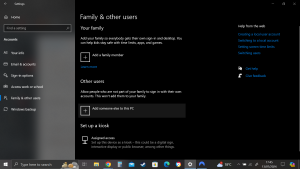
Windows 10 presents three hurdles for you to clear before you can get down to the nitty gritty of the desktop.
- 1. You’ll need to get past the lock screen, a first level hurdle so your computer doesn’t get started by accident.
- 2. If more than one person (one account) is configured to use the computer you have to choose which person will log in.
- 3. If a password is associated with the account you must type it into the computer, windows allows different kinds of passwords which are particularly helpful if you’re working on a touch device. Unless you specifically set up an account without a password you need to confirm your identity.
Only after clearing three hurdles are you granted access to the desktop and from there everything windows has to offer. In this article you can find out how to customize the lock screen and the login methods to suit your needs.
Working with the Lock Screen.
The first time you start Windows and anytime you shut it down, restart the machine or let the machine go idle for long enough you’re greeted with the lock screen like the one in the picture below.
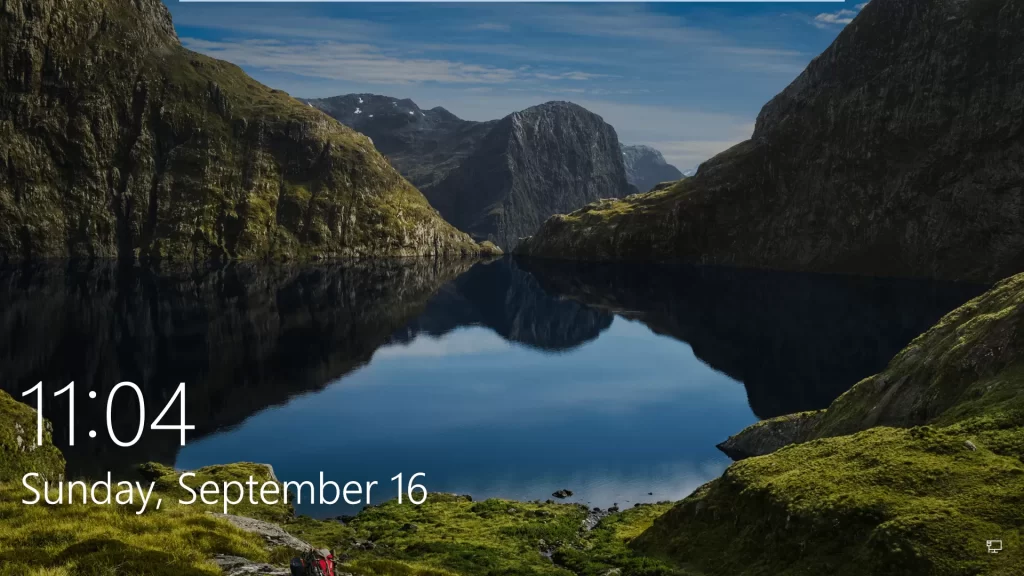
You can get through this lock screen by doing one of the following:
- Tablets or Touch-Sensitive Displays: A simple swipe up with your finger swiftly unlocks the screen.
- Mouse Users: Left-clicking with your mouse serves as an alternative for traditional desktop setups.
- Keyboard Input: For those who prefer keyboard interaction, any key press unlocks the system.
Beyond mere functionality, Windows 10 empowers users to personalize their lock screen. This includes customizing the background image and adjusting the appearance of icons and badges, providing a more tailored and visually pleasing experience. I’ll explain how below.
Using your own picture.
Changing the picture for your lock screen is easy (although there’s a slight difference between your user lock screen and the Windows’ default lock screen which I will illustrate later), customising the picture is a favourite party trick at Windows 10 demos so it must be straightforward eh?
Here’s how:
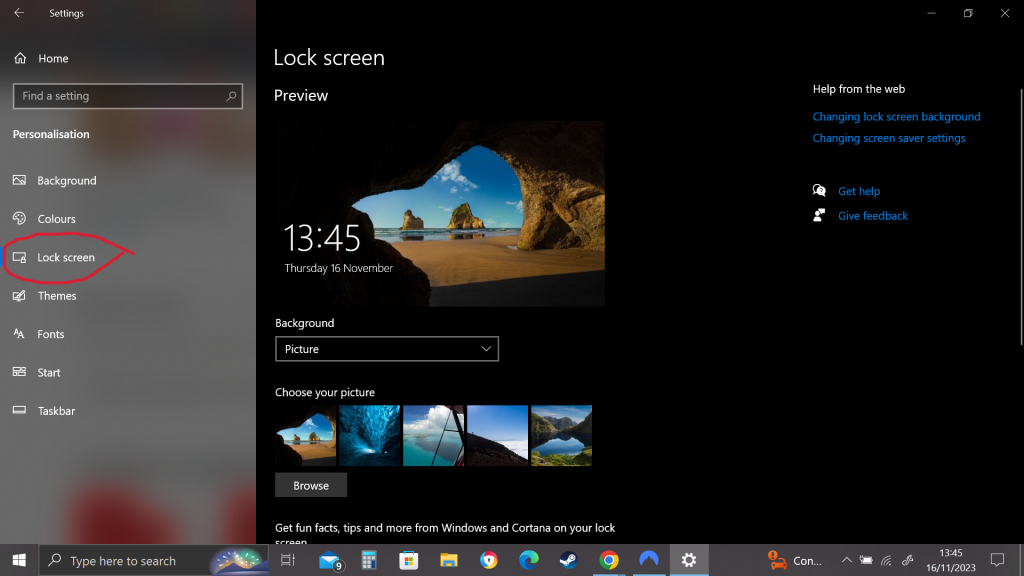
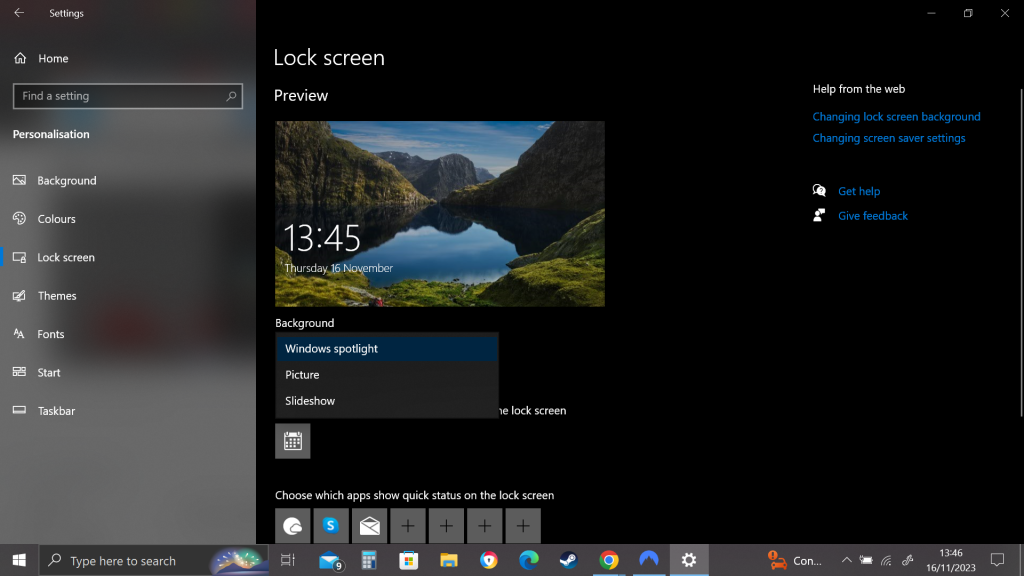
- Click or tap the start icon the settings icon and then personalisation
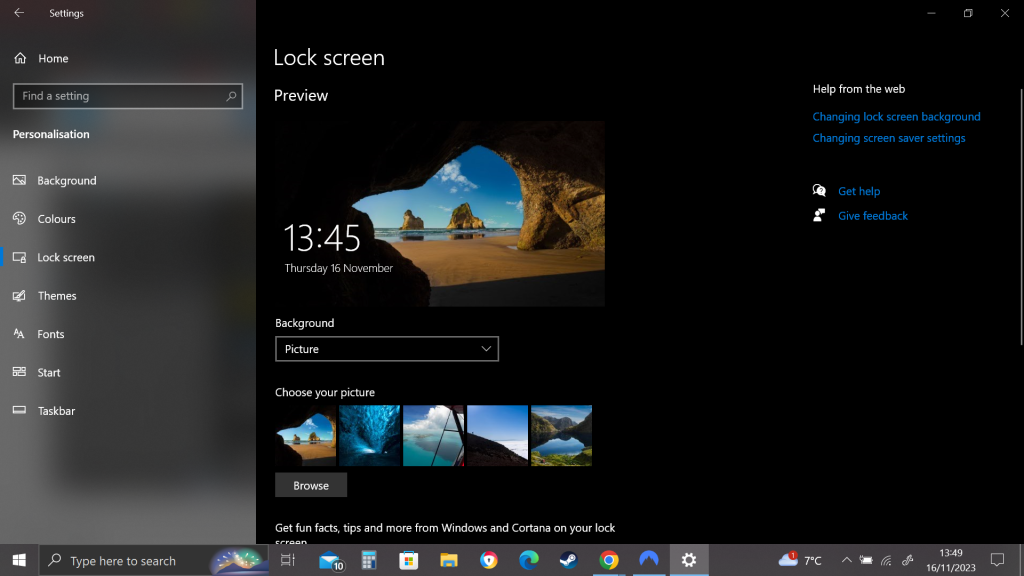
- On the left choose Lock Screen. Lock screen’s Preview window appears.
- From the Background drop-down list: first try windows spotlight if it’s an available option. Spotlight images are downloaded directly from Microsoft – more specifically from Bing – and change frequently. Microsoft reverses the right to advertise on spotlight screens ostensibly to tell you about windows features you haven’t used yet.
- From the Background drop-down list choose Picture: This selection allows you to choose which picture will appear on your lock screen. If you want to display your own unique picture click Browse. You can decide whether you want your chosen picture to be overlaid with “fun facts, tips, tricks and more on your lock screen” Whoop dee do.
- If you find a picture you want, click on it. If not choose Slideshow in the Background drop-down box. This option ties into the Albums in windows 10 photos App or alternatively you can choose to turn a folder of pictures into a slideshow. If you decide to go with a slideshow, click the advanced slideshow settings link to see whether the slideshow should be taken from your camera roll, whether the chosen pictures have to be large enough to fit your screen and several other things.
- After you’ve chosen the background for the lock screen itself, you can specify what apps should provide details that appear on the lock screen. (See this article for details about Badges). Then you’re finished there’s no apply or OK button to tap or click.
To test that your personal lock screen has been updated, go to the Start menu click your picture in the upper-left corner and choose Lock or Sign Out.
Individualized lock screens.
You may think that Microsoft keeps one lock screen for all its users, but it doesn’t. Instead it has a lock screen for each individual user and one more lock screen for the Windows system as as whole. If you’re using the system and you lock say click your picture on the start menu and choose lock, Windows 10 shows you your personal lock screen with the quick status icons/badges you have chosen. If you drag or swipe that screen you are asked to provide your password there is no intervening step to ask which user should log in.
If instead of locking the system you tap your profile picture and choose Sign Out, Windows 10 behaves quite differently. It shows the system’s lock screen with the default system badges, your lock screen and badges are nowhere to be seen. If you drag or swipe to go through the lock screen you’re asked to choose which user will log in.
Bottom line is if you change your lock screen using the techniques in this article you’re only changing your lock screen, Windows’ idea of the lock screen will stay the same.
That concludes this article, I believe it’s important to liven up your windows profile a bit by customising it to your liking,
In summary, Windows 10 introduces three initial hurdles – the lock screen, user selection, and password entry – before granting access to the desktop. This article guided you through customizing the lock screen, including personalizing background images and adjusting icons.
The lock screen can be navigated via touch, mouse, or keyboard input, offering a personalized experience. Changing the lock screen picture is simple, and Windows 10 allows customization with features like “fun facts” overlays.
Individualized lock screens exist for each user, enhancing personalization. Notably, changing your lock screen only affects your profile. The article encourages readers to explore related topics on app management relating to the lock screen and unique login methods for a comprehensive Windows experience. Make sure you read the articles relating to adding and removing apps on lock screen and logging on uniquely or any related article you see below.