Mastering the Windows operating system’s directory structure is indispensable for both regular users and IT specialists. The organized hierarchy of Windows directories is the backbone that supports file, application, and system component management, facilitating the smooth operation of the OS. This detailed exploration will cover critical directories such as “This PC,” “Program Files,” “System32,” “AppData,” and more, alongside user-centric folders including “Desktop,” “Downloads,” “Documents,” “Music,” and “Pictures.”
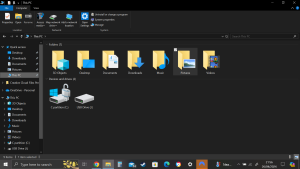
This PC: Central to the Windows OS, “This PC” acts as a gateway to your entire computer system, presenting a summary of all accessible drives and devices. It’s the starting point for exploring storage options, encompassing internal drives (like the C: drive) and external or network-connected storage. Additionally, it’s the umbrella under which personal folders such as “Documents” and “Downloads” reside, located within the user’s profile on a listed drive.
Program Files: The default installation destination for 64-bit applications on 64-bit Windows systems, the “Program Files” directory, typically found on the C: drive, is essential for the orderly storage of software and their files. Notably, 32-bit applications on a 64-bit system are allocated to the “Program Files (x86)” directory to maintain order and compatibility.
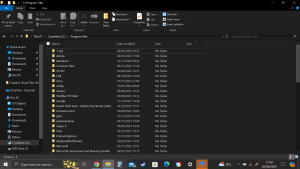
Program Files (x86): This special directory hosts 32-bit applications on 64-bit Windows versions, ensuring seamless operation of older software within a structured framework. Located on the C: drive, it complements the primary “Program Files” directory, fostering an organized software environment.

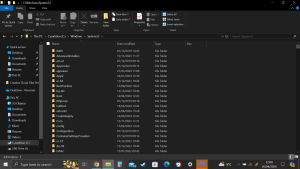
System32: At the heart of Windows functionality lies the System32 directory, brimming with vital system files, dynamic link libraries (DLLs), and executables (EXEs) that are critical for the OS to run smoothly. Found within the “Windows” directory (usually at “C:\Windows\System32”), it’s a key component for system stability and operation.
AppData: Tailored to store application-specific data, the AppData directory is a personal space within each user’s profile for saving settings, configurations, and other data across three subdirectories: Roaming, Local, and LocalLow. This structure ensures that user-specific application data is neatly organized and easily accessible.
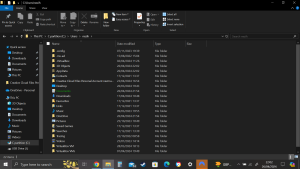
Windows: The cornerstone directory of the Windows operating system, “Windows” contains the essential files, drivers, and configurations required for the OS to function correctly. Located on the system drive, typically at “C:\Windows,” it’s the core around which the OS revolves.
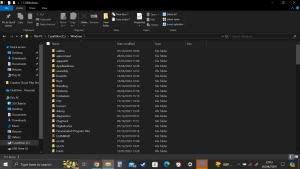
Users: Home to individual user profiles, the “Users” directory stores personal folders and data for each account on the system. Within each user’s profile, folders like “Desktop,” “Downloads,” and “Documents” provide a personalized workspace, generally found under “C:\Users<Username>.”
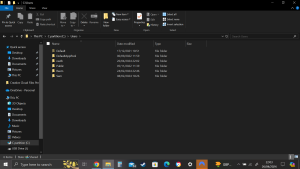
ProgramData: Serving the needs of applications requiring shared data across all users, the “ProgramData” directory holds settings, cache files, and other non-user-specific data, crucial for application functionality and user experience. It’s typically located at “C:\ProgramData” on the system drive.

Temp: The repository for temporary files generated by the OS and applications, the “Temp” directory, aids in managing space by storing files that are not intended for long-term use. While cleaning this directory can free up space, caution is advised to avoid disrupting ongoing processes. It’s usually found at “C:\Windows\Temp.”

Conclusion: Gaining an in-depth understanding of the Windows directory structure is paramount for efficient system management, problem-solving, and ensuring operational stability. By becoming acquainted with pivotal directories and user-specific folders, users can confidently navigate the Windows OS, optimizing their computing experience. It’s crucial, however, to proceed with care when altering system files and directories to prevent adverse effects.