In this article I will take you through setting up picture passwords, PINs and how to login using your face using Windows hello step by step. I will also show you how to bypass logins completely, if you aren’t concerned with people snooping around your PC it can be done easily.
Using a picture password.
If you set up an account that has an everyday ordinary password, you can use a picture password. It’s easy. A picture password consists of two parts: First you choose a picture — any picture — then you tell Windows that you’re going to draw on that picture in a particular way, such as taps, clicks, circles and straight lines, with a finger or a mouse. The next time you want to log in to Windows you can either type your password or you can repeat the series or clicks, taps, circles and straight lines. For example suppose you have pictures of you and your friends and you want your picture password you to involve tapping the forehead of the person in the middle, then the person on the right, then the woman on the right in that order.
That picture password is simple fast, and not easy to guess. Everybody I know who has a chance to switch to a picture password or PIN loves it. Whether you’re working with a mouse or a stubby finger, a few taps or slides are so much easier than trying to remember and type a20Letterp@ssw0rd.
Microsoft has as few suggestions for making your picture password hard to crack. Some of them are listed below:
- Start with a picture that has lots of interesting points. If you have just one or two interesting locations in the photo you don’t have many points to choose from.
- Don’t just use taps or clicks. Mix things up. Use a tap, a circle, and a line, in any sequence you can remember.
- Don’t move from left to right. Lines can go right to left, or top to bottom. Circles can go clockwise or counter clockwise.
- Don’t let anybody watch you sign in. Picture passwords are worse than keyboard passwords in some respects because the picture password appears on the screen as you’re drawing it.
- Clean your screen. Really devious souls may be able to figure out that rail of oil and grime if from your repeated use of the same picture password. If you can’t clean your screen and you’re following the grime trail put a couple of wanton gratuitous smudges on the screen. Perhaps you can find a child that would be happy to oblige.
Here’s how to change your account to use a picture password:
- Tap or click the Start icon, the Settings icon , and then Accounts.
- On the left choose sign-in Options and then on Picture Password, on the right.
The password settings your for your account appear, as shown in the picture below.
The picture password used to be available for all types of Windows 10 accounts. As of the Windows 10 May 2020 is only available only for local (non-Microsoft) accounts. If your account is associated with an email you will not see Picture Password in your sign in option.
- Under Picture Password tap or click Add. If your account doesn’t yet have a password, you’re prompted to provide one if you do have a password windows 10 asks you to enter it. You must have a typed password — the password can’t be blank — or windows 10 will just log you in without any password, either typed or picture.
- Type your password, then tap or click OK. Windows 10 asks you to choose a picture.
- Tap or click Choose Picture, find a picture (remember, with ten or more interesting points), and tap or click Open. Your picture will appear in a cropping bucket. The picture must conform to an odd shape, or it won’t fit on the login screen.
- Slide the picture around to crop it the way you want. Then tap or click Use this Picture. Windows 10 invites you to set up three gestures as shown in the picture below. (Three taps/clicks, lines and circles).
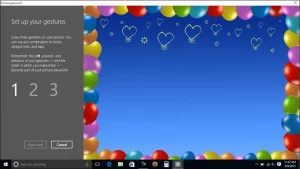
- Trace out the gestures exactly as you want them. Make sure the gestures are in the correct order and that each of the three consists of a click a line or a circle. Windows 10 then asks you to repeat your gestures. This is where you get to see how sensitive the gesture-tracking method can be.
- Repeat the gestures. When you get them to match (which isn’t always easy) tap or click Finish.
- Go to the Start menu, tap your picture and choose Lock. Then click anywhere on the lock screen and make sure you can replicate your gestures.
If you can’t get the picture password to work you can always use your regular typed password.
Creating a PIN
Everybody has a PIN codes for ATM cards, telephones and just about everything.
Reusing PIN codes on multiple devices and credit cards is dangerous — somebody looks over your shoulder, watches you type your Windows 10 PIN, and then nicks your wallet off of you, such devious individuals can have a good time, unless the PINs are different. Word to wise eh?
PINs have a lot of advantages over passwords and picture passwords. They’re short and easy to remember fast, technically the best thing to remember is that it is stored on your computer — it’s tied to that one computer, and you don’t have to worry about it getting stored in a hacked database or stolen with your credit card numbers. In recent versions of Windows 10, the PIN is part of the Windows Hello — Microsoft’s service for secure authentication options, which improves with each major update. More on that in another article. For now realise that creating a PIN is easy. Here’s how to do it.
- Tap or click Start, the Settings icon, and then Accounts.
- On the left choose Sign- in Options. The password settings for your account appear
- Click or tap windows Hello PIN and then Add. Windows 10 asks you to verify your password — it must be your typed password a picture password won’t do.
- Type you password and tap or click OK. Windows 10 gives you a chance to type your PIN as shown in the figure below and then retype to confirm it. Most ATM PINs are four digits but you can go longer if you wish to, windows 10 can handle any pin code you throw at it.
- Type your PIN confirm it and click. You can log in with your PIN.
Creating a PIN
In a nutshell, Windows Hello offers biometric authentication — way beyond a password or PIN. The Windows Hello Technology includes fingerprint, face(and soon, iris) recognition with a specially designed camera or fingerprint reader or both.
Microsoft is gradually implementing fingerprint recognition with older finger scanners as well. But the hallmark Hello scan for your shiny face is limited to fancy cameras included with only a limited number of computers.
I’m not the biggest fan of Windows Hello face recognition, why? I’m glad you asked. Many times I sit in front of a PC and don’t wish to log in. But if I place my face anywhere near my computer when it’s turned on while I’m using Windows Hello face recognition, I’m caught like a deer in headlights — bang there, I’m logged in. If I want to log in to a different account, I have to manually log out and then beat Hello to the punch, which is surprisingly difficult. If you have a computer that supports Hello face recognition, give it a try and see if you like it. If you’re thinking about buying a computer specifically because it has the camera to support Hello face recognition forget about it, I’d stick with a PIN or a picture thank you very much.
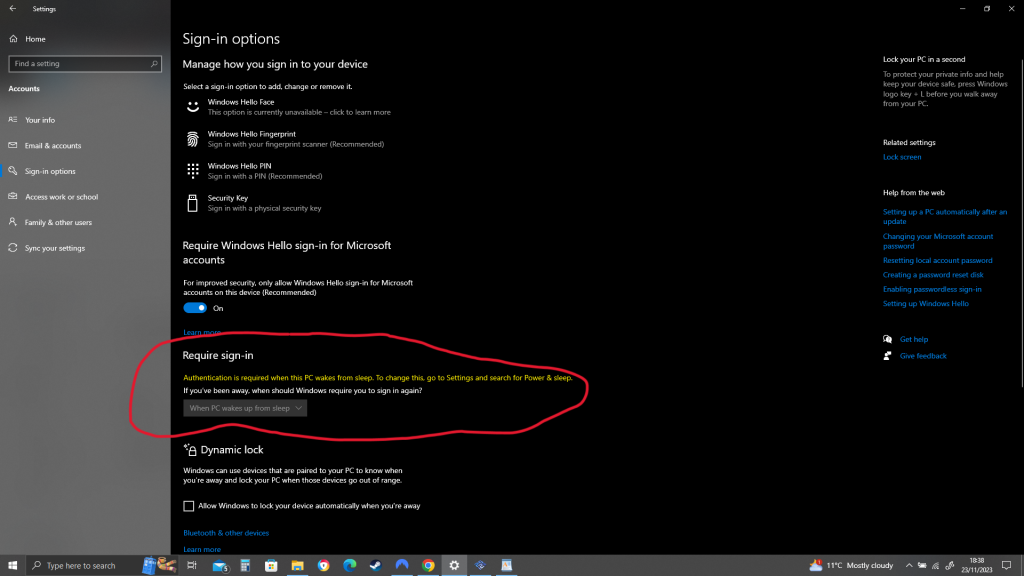
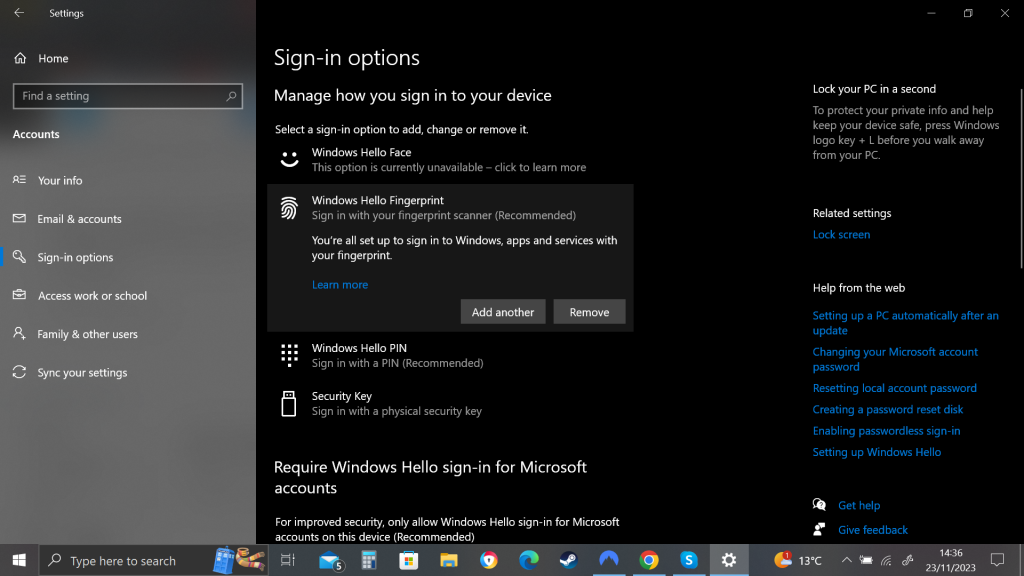
How to tell if your computer supports Windows Hello? Click the Start Icon, the Settings icon, Account, and then Sign-in Options. If your machine can handle Windows Hello Face, you’ll see sign in with you camera(Recommended), under Windows Hello Face, and something similar under Windows Hello Fingerprint. If it can’t you’ll see this option is currently unavailable under those sign-in options. You can see this in the figure below.
Bypassing passwords and login
So now you have three convenient ways to tell Windows 10 your password: You can type it like just like a normal password; you can click or tap on a picture; or you can pretend it’s a smartphone and enter a PIN
But what if you don’t want a password? What if your computer is secure enough – it’s sitting in your house, it’s in your safe deposit box, it’s dangling from a vine over a pot of boiling oil — and you just don’t want to be bothered with typing or tapping a password?
As long as you have Local account, it’s easy. Just remove your password, turn it into a blank. Follow the steps in this article to change your password but leave the New Password field blank.
Microsoft accounts can’t have blank passwords. Only local accounts can.
If you have a blank password when you click your username on the login screen, windows 10 ushers you into the desktop.
If only one user is on the PC and that user has a blank password just getting past the lock screen takes you to the desktop.
If you have a Microsoft account you have to use your password (picture, PIN, Hello, whatever) once each time you reboot. If you don’t want to be bothered after that, see the Require Sign-In drop – down choice at the top of the Sign – In options screen. Click to change the answer to “If you’ve been away when should Windows require you to sign in again” to Never.