Microsoft reports that 70 percent of all Windows PCs have just one user account. Means that 70 percent of all Windows PCs run at the most permissive security level, all the time. It means that on a large portion of all Windows PCs, anyone can install a notorious piece of scum ware and have it bring down the whole family with a couple of simple clicks.
Although it’s true that many PCs are each used by just one person, it’s highly likely that people don’t set up multiple user accounts on their PCs because they’re intimidated. This article will take you through the ins and outs.
Even if you’re the only person who ever uses your PC, you may want to create a second account, another user as it were even if the second user is just you. As Pogo said we have met the enemy and he is us. Then again you may not.
If you’re running Windows 10 Enterprise or Windows 10 Pro and your PC is connected to a big corporate network (domain) you have little or no control over who can log in to your computer and what a logged in user can do after they’re on the machine. That’s good in theory. Your company’s network administrator gets to worry about all the security issues, relieving you of the hassles of figuring out whether the guy down the hall should look at payroll records or company Christmas card list but it can also be a pain especially if you have to install a program. If you computer is attached to a domain your only choice is to convince (or bribe) the network admin to let you in. The nostrums in this chapter only apply to PCs connected to small networks or stand alone PCs. If you’re big network, you must pay homage to the network gods.
Windows 10 has two separate locations that control user accounts. If you want to do only simple stuff create a new account, change the password or switch to a picture password, you can do it all on the touch friendly settings side of windows 10. On the other hand, if you want to do something more challenging — set the User Account Control trigger levels, for example — you must work with the old-fashioned Windows 7 – style Control Panel. I show you how to use both in this article.
User account control is a security topic only tangentially related to user accounts I talk about it in another articles.
Why you need separate user accounts.
Windows 10 assumes that, sooner or later, more than one person will want to work on your PC, All sorts of problems crop up when several people share a PC. I set up my screen just right, with all my icons right where I can find them then my little brother comes along a plasters the desktop with a shot of elite dangerous. He puts together a Taylor Swift playlist and ‘accidentally’ deletes my playlists in the process.
It’s worse than sharing a TV remote.
Windows 10 help keep peace in the family — and and in the office — by requiring people to log in. The process of logging in ( signing in) lets the operating system keep track of each person’s settings. You tell Windows 10 who you are and it lets you play in your sandbox.
Having person settings that are activated whenever you log in to Windows 10 doesn’t create heavy-duty security. Unless your PC is a slave to a big Active Directory domain network, your settings can get clobbered and your files deleted, If someone else with access to your computer or your network tries hard enough. But as long as you’re reasonably careful and follow the advice in this article, Windows security works surprisingly well.
If someone else can put his hands on your computer, it isn’t your computer any-more. That can be a real problem if someone swipes your laptop, if the cleaning staff uses your PC after hours or if a snoop breaks into your room. Unless you use BitLocker (Windows 10 Pro) anybody who can restart your pc can look at modify, or delete your files or stick a virus and start your PC with another operating system. With bit-locker out the picture compromising a PC doesn’t take much work.
Choosing Account Types
When dealing with user accounts, you bump into one existential fact of windows life over and over again: The type of account you use imposes limitations on what you can do. Unless you’re hooked up to a big corporate network user accounts can be divided into two groups: haves and have nots (Users in corporate domains are assigned accounts that can exist anywhere on the have to have not spectrum). The have accounts are administrator accounts. The have – nots are standard accounts. That’s it, standard.
What’s a standard account?
- A person running with a standard account can do only, erm standard tasks:
Run programs installed on the computer, including programs on USB/key drives. - Use hardware already installed on the computer.
- Create, view, save, modify and use documents pictures and sounds in the Documents, Pictures Or music folders as well as in the PC’s Public folder.
- Change their password or switch back and forth between requiring and not requiring a password for his account. He can also add a picture or a PIN password. If your computer is sufficiently enabled he can also use Windows. Hello to set up a camera, fingerprint, or retina scan. Just like in the movies.
- Switch between an offline (local) account and a Microsoft account, I talk about both in another article.
- Change the picture that appears next to their name on the Welcome screen and on the left side of the Start menu, change the desktop wallpaper, resize the Windows toolbar add items to the old fashioned desktop toolbar and Start menu, and make other small changes that don’t affect other user accounts.
In most cases a standard user can change systemwide settings, install programs, and the like, but only if he can provide the username and password of an administrator account.
If you’re running with a standard account, you can’t even change the time on the clock. It’s quite limited.
There’s also a special limited version of the standard account called a child account. As the name implies, child account can be controlled and monitored by those with standard and administrator accounts.
Child accounts
Child accounts are like standard accounts but they’re automatically set up with child protection enabled, someone with an administrator account can control which websites the child accounts can access, what time of the day the accounts can be used and the total amount of time the accounts are used in a day.
It’s all done on the web — controls aren’t in Windows 10 itself, they’re in a website maintained by Microsoft, There’s a small charge for each child accounts that you set up. Note the laws in various places including COPPA in the US — require that an account for anyone under 12 has to be associated with a guardian who controls a child.
Full instructions for bringing a Windows 7 or 8 child accounts into Windows 10 on the Microsoft.
What is an administrator account?
People using administrator accounts can change almost anything anywhere, at any time. However certain folders remain off limits, even to administrator accounts and you must jump through some difficult hoops to work around the restrictions. People using administrator accounts can even change other offline/local accounts’ password — a good thing to remember if you ever forget password.
If you start Windows 10 with a standard accounts you can accidentally run a virus, a worm or some other piece of bad computer code the damage is usually limited: The malware can delete or scramble files in your Documents folder, and probably in the Public folders, but that’s about the extent of the damage. Usually. Unless it’s exceedingly clever, the virus can’t install itself into the computer so it can’t run repeatedly and it may not be able to replicate. Poor virus.
Choosing between standard and administrator accounts
The first account on a new PC is always administrator account. If you bought your PC with Windows 10 preinstalled, the account that you have — one you probably set up shortly after you took the computer out the box — is an administrator account. If you installed Windows 10 on a PC the account you set up during the installation is an administrator account.
When you create new accounts, on the other hand, they always start out as standard accounts. That’s as it should be.
Administrator accounts and standard accounts aren’t set in concrete. In fact, Windows 10 helps you shape-shift between the two as circumstances dictate:
- If you’re using a standard account and try to do something that requires an administrator account, Windows 10 prompts you to provide the administrator account’s name and password or PIN. If the person using the standard account selects an administrator account without a password, simply clicking the yes button allows the program to run — one more reason why you need passwords on
all your administrator accounts, eh? - Even if you’re using an administrator account, Windows 10 normal runs as though you had a standard account, in some cases adding an extra hurdle when you try to run a program that can make substantial changes to your PC — and substantial is quite a subjective term. You have to clear the same kind of hurdle if you try to access folders that aren’t explicitly share. That extra hurdle helps prevent destructive programs from sneaking into your computer and running with your administrator account, doing their damage without your knowledge or permission. Some experts recommend that you use a standard account for daily activities and switch to an administrator account only when you need to install software or hardware or access files outside the usual shared areas. Most experts ignore their own advice: The old do as I say not as I do syndrome.
It so happened that users required a an administrator account in the past, however times change and Windows has changed: You rarely need an administrator account to accomplish just about anything in “normal” day to day use. (One exception: You can add new users only if you’re using administrator account) For that reason I’ve concluded that you should save that one administrator account for a rain day, and set up standard accounts for yourself and anyone else who uses the PC. Run with a standard account, and I bet you seldom know the difference.
What’s good and bad about Microsoft accounts?
In addition to administrator and standard accounts(and child accounts, which are a subset of standard accounts), Microsoft has another pair of account types, Microsoft accounts and offline (formerly known as local) accounts, You can have an administrator account that’s a Microsoft account or a standard account that’s a Microsoft account or an administrator account that’s an offline/local account, and so on. If you aren’t confused you obviously don’t understand.
The basic differentiation goes like this:
Microsoft accounts are registered with Microsoft. Most people use their @hotmail.com or @live.com or @outlook.com email addresses. Still you can register any email address at all as Microsoft account (details in this article). Microsoft accounts must have a password.
When you log in to Windows 10 with a Microsoft account, Windows goes out to Microsoft’s computer in the clouds and verifies your password and then pull down many of your major Windows 10 settings and transfers them to the PC you just logged in to. You can control which settings get synced in the Settings app. (Start > Settings > Accounts > Sync Your Settings) see figure
If you change say your background the next time you log into Windows 10 — from any machine, anywhere in the world — you see the new background. More than that, if the Microsoft account is set up to do so, you can get immediate access to all your music, email, OneDrive storage and other Windows 10 features without logging in again.
Offline (or Local) accounts are regular old-fashioned accounts that exist only on this PC. They don’t save or retrieve your settings from Microsoft’s computer. Offline/Local accounts may or may not have a password.
Control which windows 10 settings get synched across your Microsoft account. (figure).
On a single PC, administrator accounts can add new users, delete existing users, or change the password of any offline/local on the computer. They can’t change the password of any Microsoft accounts.
As you may imagine is privacy is among the several considerations for both kinds of accounts, Microsoft accounts are undeniably more convenient than offline local accounts. Sign into Windows 10 with your Microsoft account and many of your apps will just realize who you are, pull in your email, sync your storage, and much more. on the other hand using a Microsoft account means that Microsoft has a log of many of your interactions with your machine — when you signed in, how you used the Microsoft apps (including edge), Bing search results, and so on. The Microsoft account login also lets Microsoft associate your account with a specific electronic address and IP address. Is the added convenience worth the erosion in privacy? Only you can decide.
Adding Users
After you log in to an administrator account, you can did more users quite easily. Here’s how:
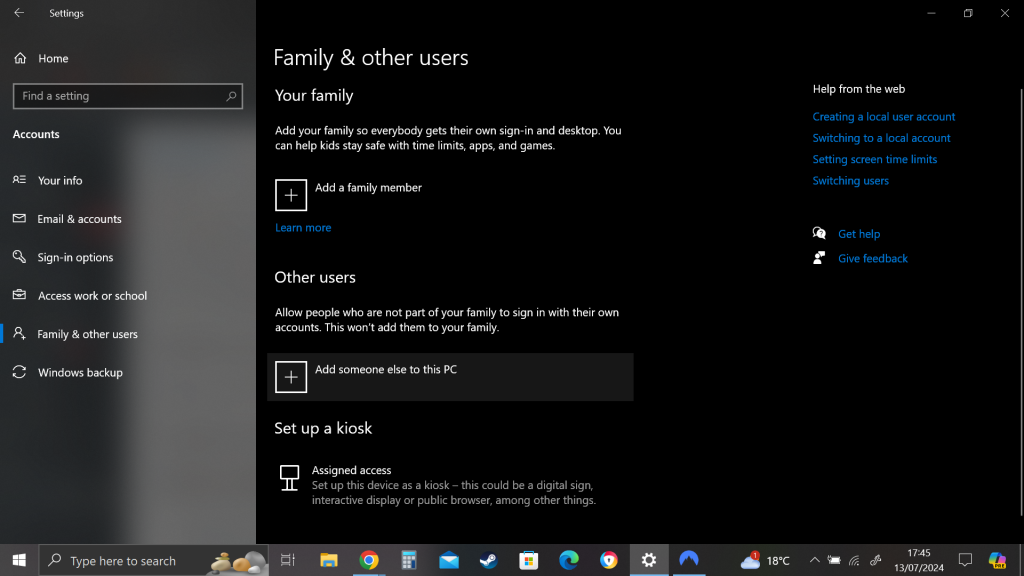
!. Click or tap the Start button and then the Settings shortcut.
2. On the Settings windows, click or tap Account.
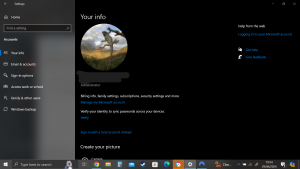
3. On the left, click or tap Family & Other Users and then choose one of the following:
- Add a Family Member: Choose this if you want to control the account with Parental Controls. This options is available only if your use a Microsoft account to add the new user.
- Add Someone Else to This PC: The someone else could well be a family member — you just don’t get easy access to Parental Control for the account. You see the challenging How Will This Person Sign In? dialog box, as shown the the picture.
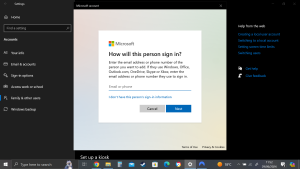
4. If the new user already has a Microsoft account(or an @hotmail.com or @live.com @outlook.com email address — which are automatically Microsoft accounts), type the address in the box at the top and then tap or click Next. Then click to tap Finish and you are done.
Windows 10 sets up your account. There are good reasons for using a Microsoft account — a Microsoft account makes it much easier and faster to retrieve your mail and calendar entries, for example, or use the Microsoft Store or Music Videos, bypassing individual account logins. It’ll automatically connect you to your OneDrive account. Only you can decide if the added convenience is worth the decreased privacy. This article covers the details.
5. On the other hand, if you’re sceptical about using a Microsoft account, click or tap the link at the bottom that says Take Your Microsoft Account and Shove it (otherwise known as I don’t have this Person’s sign-in information).
Windows 10 gives you yet another opportunity to set up a Microsoft account, as shown in the the figure.
6. At the bottom, click or tap Add a User without a Microsoft Account. Sheesh. Windows 10 (finally!) asks you about an offline/local account name and password.
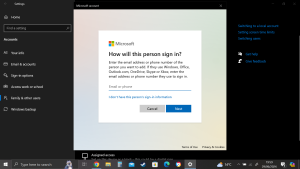
Second time Microsoft asks whether you want to set up a Microsoft account.
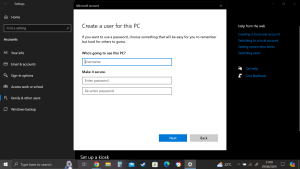
Now you get to “adding a new account part”.
7. In the Who’s Going to Use This PC? filed, type a name for the new accounts.
You can give a new account just about any name you like: first name, last name, nickname, titles, abbreviations… No sweat, as long as you don’t use the characters /\[]”;: | <>+=,? or *.
8.(Optional) Type a password twice and answer three security questions.
If you leave the password fields blank, the user can log in directly by simply tapping or clicking the account name on the login screen. Usually that isn’t a good idea. If only to thwart people who casually get ahold of your machine for a minute.
Note that anyone can see the security questions on the computer so avoid that NSFW(Not Suitable For Work) hint you were thinking about.
9. Click or tap Next.
You’re finished. Rocket science. You have a new standard account, and it’s name now appears on the Welcome screen.
If you want to turn the new account into an administrator account or a child account follow the steps in the article “Changing Accounts”. To add- an account picture for login screen and start screen check out this article.
This topic is more than a bit confusing, but you aren’t allowed to create an account named Administrator. There’s a good reason why Windows 10 prevents you from making a new account with that name: You already have one. Even though Windows 10 goes to great lengths to hid the account named Administrator, it’s there and you may encounter it on a night when you’re exploring a blind-alley. For now don’t worry about the ambiguous name and the ghostly appearance. Just refrain from trying to create a new account named Administrator.
Just because you have a Microsoft account doesn’t mean you can log in to any computer anywhere. Your Microsoft account has to be set up on a specific computer before you can use that computer.
Changing Accounts
If you have an administrator account, you can reach in and change almost every detail of every single account on the computer — except one.
Charging other users’ settings
In general, changing other users’ settings is easy if you have an administrator account. To change account from a standard account to an administrator account.
- Click or tap the Start button and then the Settings shortcut.
- On the Settings windows, click or tap Accounts. On the left, choose Family & Other Users.
A list of the all the accounts on the computer appears. - Click or tap on the account you want to change.
For example in the figure I chose to change my offline/local account called Digital Citizen. - Click or tap the Change Account Type button below the selected account.
Windows 10 responds with the option to change from standard user to administrator account and back. - Select the new account type, and click or tap OK.
The account’s type changes immediately.
For other kinds of account changes, you need to venture into the old-fashioned Control Panel applet. Here’s how:
- In the Windows 10 Search box, type Control Panel. In the list of search results, choose Control Panel. The old fashioned control panel appears.
- Chose User Accounts, then User Accounts again. Click Manage Another Account.
A list of all the accounts on the computer appears. - Click or tap on the account you want to change.
Windows 10 immediately presents you with several options
Here’s what the options entail:
Change the Account Name: This option appears only for offline/local accounts. (It’d be kind of difficult if Windows 10 let you change someone’s Microsoft account eh) Selecting this option modifies the name displayed on the login screen and at the top of the Start menu while leaving all other settings intact. Use this option if you want to change only the name on the account –for example if Little Bill wants to be called Sir William.
Create/Change a Password: Again, this appears only for offline/local accounts. (Create appears if the account doesn’t have a password; Change appears if the account already has a password.) If you create a password for the chosen user, Windows 10 requires a password to crank up that user account. You can’t get past the Login screen (using that account) without it.
This setting is weird because you can change it for other people: You can force Bill to use a password when none was required before, you can change Bill’s password, or you can make it blank.
If you change someone’s password, do them a big favour and tell them how to create a Password Reset Disk.
Password are cAse SenSitive — you must enter the password with uppercase and lowercase letters precisely the way it was originally typed. If you can’t get the computer to recognize your password, make sure that the Caps Lock setting is off. That’s the number one source of login frustration.
Much has been written about the importance of choosing a secure password, mixing uppercase and lowercase letters with punctuation marks, ensuring that you have a long password etc. I have only two admonitions: First, don’t write your password on a yellow sticky note attached to your monitor; second, don’t use the easily guessed password that the Conficker worm employed to crack millions of systems. Good advice from a friend: Create a simple sentence that you can remember and swap out some letters for numbers (G00dGr1efTerry) or think of a sentence and use only the first letters! (toasaoutfl!) Of course, using a picture password or PIN (or even a Hello mugshot, a fingerprint or an iris scan) makes even more sense.
Change the Account Type: You can use this option to change accounts from administrator to standard and back again. This implications are somewhat complex; I talk about them in this article.
Delete the Account: Deep-six the account, if you’re that bold(or mad, in all the senses of the term). If you’re deleting a Windows 10 account, the account itself still lives — it just won’t be permitted to log into this computer. Windows offers to keep copies of the deleted account’s Documents folder and desktop, but warns you quite sternly and correctly that if you snuff the account, you rip out all the email messages, Internet Favourites, and other settings that belong to the user — definitely not a good way to make friends, Oh and you can’t delete your own account, of course, so this option won’t appear if your PC has only one account.
Manage Another Account: Displays the list of accounts so you can choose another user and modify the user’s account using the options just described.
Changing your own settings
Changing your own account is just a little different from changing other users’ accounts. Follow these steps:
- Bring up the Control Panel.
To do so, down in the Windows 10 search box, type Control Panel. Then, up at the top, choose Control Panel. - In the upper right, choose User Accounts, then User Accounts again.
Windows 10 offers you the chance to change your own account. If you want to change your password, picture, or family settings, you get out to the Settings app. And from there if you have a Microsoft account, you can link it to the your local account.
Most of the options for your own account mirror those of other users’ accounts, as descried in the preceding section. If you have the only administrator account on the PC, you can’t delete your own account and you can’t turn yourself into a standard user. Makes sense: Every PC must have at least one user with an administrator account. If Windows 10 lost all its administrators, no one would be around to add users or change existing ones, much less to install programs or hardware, right?
Switching Users
Windows 10 allows you to have more than one person logged into a PC simultaneously. That’s convenient if, say you’re working on the family PC and checking Billy’s homework when you hear the cat screaming bloody murder in the kitchen and your wife wants to put digital pictures from the family vacation on OneDrive while you run off to check the microwave.
The capability to have more than one user logged in to a PC simultaneously is fast user switching, and it has advantages and disadvantages:
- One the plus side: Fast user switching lets you keep all your programs going while somebody else pop on to the machine for a quick jaunt on the keyboard. When they’re done they can log off, and you can pick up precisely where you left off before you got bumped.
- On the minus side: All idle programs left sitting around by the inactive (bumped) user can bog things down for the active user, although the effect isn’t drastic. You can avoid the overhead by logging off before the new user logs in.
To switch users, click the Star button, click or tap your picture, and choose either the name of the user you want to switch to or Sign Out. If you choose the latter you’re taken to the sign-in screen where you can choose from an user on the computer.
The Changing Environment
Windows Hello represents a big step, forward in Windows 10 login capabilities. Instead of of one sudden “Hello, Johnny!” login experience, Microsoft is keeping all the login possibilities you’ve known for years, while rolling out the various pieces of Windows Hello features over time.
The initial release of Windows 10, In July 2015, included Windows Hello facial identification for the small subset if Windows 10 users who have special cameras. Microsoft also built some fingerprint reading smarts into Windows Hello.
The November 2015 release of Windows 10 added features for corporate machines and Passport for Work features, including an Azure AD cloud interface. The July (actually August) 2016 Anniversary update, version 1607, added some basic iris scanning capabilities. The Anniversary update also dropped the Passport terminology, but not the Passport functionality, for consumers and work.
Subsequent versions of Windows 10 added more features to Windows Hello. For example, Microsoft giving more support to the Trusted Platform Module (TPM) chip that’s appearing inside all new Windows 10 machines. More info on TPMs here.